

Run Sample Source Code
Sample Source Code Running Guide
Prepare Environment
Before integrating the ZEGO Express SDK, please ensure your development environment meets the following requirements:
-
Install Node.js, it is recommended to use the Long Term Support (LTS) version displayed on the official website homepage.
-
Install a browser with compatibility as shown in the following table:
| Browser | Windows | Mac | Android | iOS |
|---|---|---|---|---|
| Chrome 58 or later | ✔️ | ✔️ | ✔️ | ✖️ |
| FireFox 56 or later | ✔️ | ✔️ | ✔️ | ✖️ |
| Safari 11 or later | - | ✔️ | - | ✔️ |
| Opera 45 or later | ✔️ | ✔️ | Partial support | ✖️ |
| QQ Browser latest version | ✔️ | ✔️ | Partial support | ✖️ |
| 360 Secure Browser speed mode | ✔️ | ✔️ | ✖️ | ✖️ |
| WeChat Browser | - | - | ✔️ |
|
| WebView | - | - | ✔️ | Only supports playing streams |
Only Web servers with SSL (https), localhost, 127.0.0.1 are equivalent to https.
Prerequisites
You have created a project in the ZEGO Console, applied for a valid AppID and AppSign, and obtained the access server address Server. For details, please refer to Console - Project Management.
Notes
- The SDK in the sample source code is a beta version, please do not use it in a production environment.
- ZEGO currently only provides an interface for obtaining tokens in a test environment. In a production environment, developers need to implement the token acquisition logic themselves. For obtaining the token required for logging into a room, please refer to Login Room Authentication.
Get Sample Source Code
GitHub Download
This sample source code demonstrates how to use APIs to implement audio/video services
Gitee Download
This sample source code demonstrates how to use APIs to implement audio/video services
GitHub Address
Run Sample Source Code
-
Switch to the project directory in Terminal and run the
npm icommand to install dependencies. -
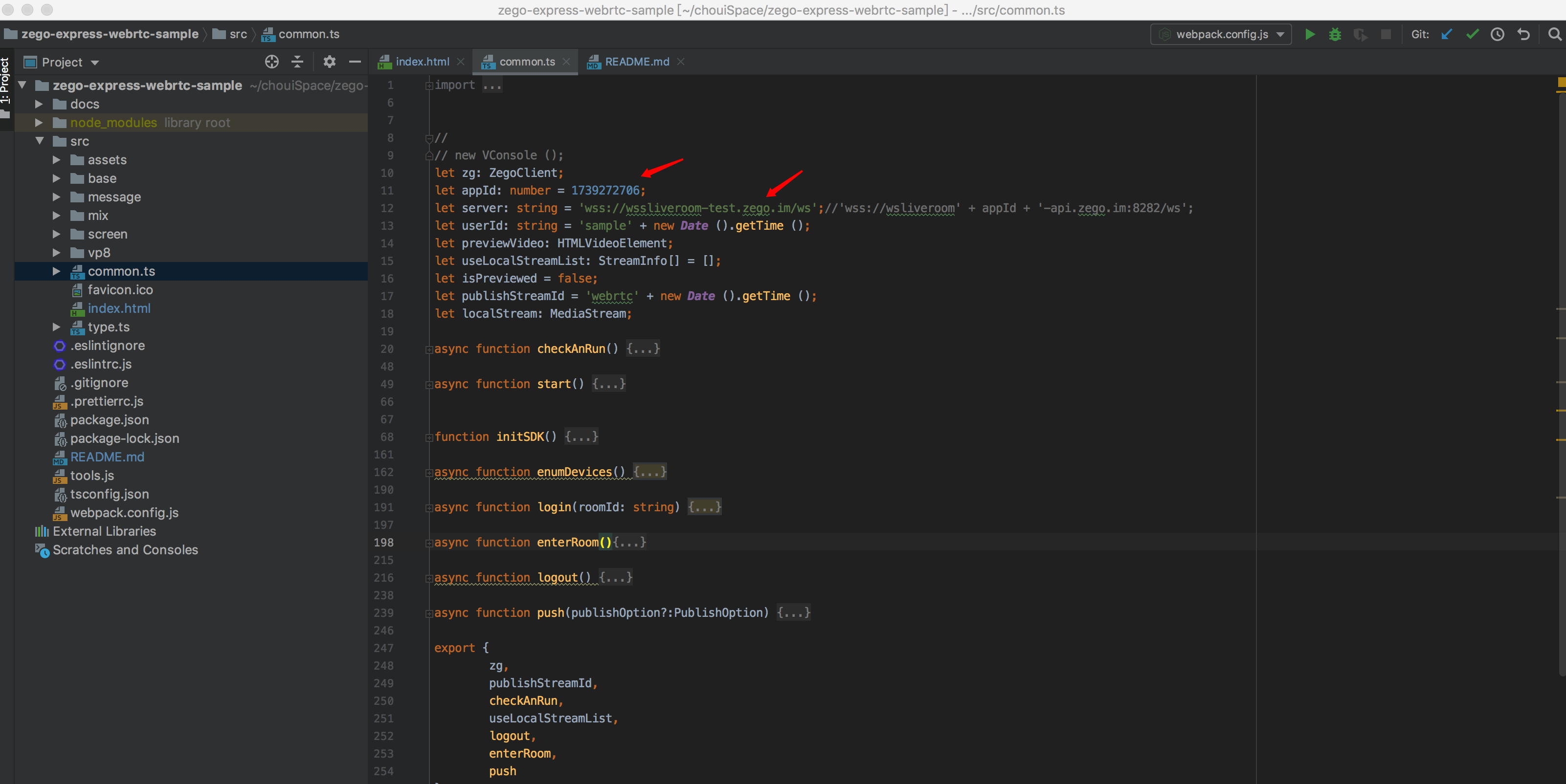
The downloaded sample source code lacks the appId and server address required for SDK initialization. You need to modify the appId and server in the "./src/common.js" file to the AppID and Server obtained in Prerequisites, otherwise the sample source code cannot run normally.
-
Run the
npm run devcommand in Terminal to run the sample source code. After running successfully, access the local server (https://***) in a browser. An example is as follows:
Project is running at https://192.168.6.184:9090/
Run the Control+C command in Terminal to stop the server.
Experience Real-time Audio/Video Features
Run the project on a real device. After running successfully, you can hear the local audio and see the local video.
Use the Web platform for debugging (only supports use in a test environment), enter the same AppID and roomID, and join the same room to communicate with the real device. When the audio/video call starts successfully, you can hear both local and remote audio, and see both local and remote video.
In audio-only scenarios, you can only hear audio and cannot see video.