







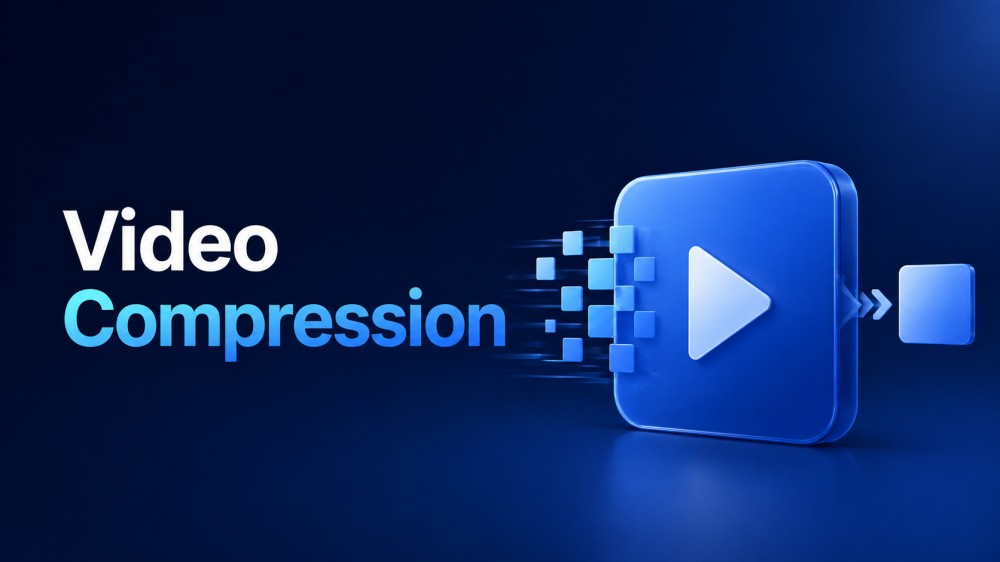
The widespread use of video content in communication and marketing has underscored the importance of video compression. However, handling large video files without compression can increase costs and impose technical limitations during use. In this context, video compression provides a straightforward solution by reducing file size and retaining video clarity. Whether you need better storage management or a more consistent viewing experience, read the guide to know more about video compression.
What Is Video Compression?
Video compression means making a video file smaller, so it uses less space and internet data, while still looking almost the same to our eyes. It does this by removing repeated or tiny visual details that people usually cannot notice. This way, videos can be streamed smoothly on social media platforms like YouTube and Netflix. Moreover, there are 2 kinds of compression for videos, such as lossy or lossless compression.
Precisely, lossy compression saves more space but can slightly lower the quality, whereas lossless compression keeps more details. Without video compression, most people would find it very hard to watch online videos because the files would be too large. Additionally, many compressors can lower bitrates without being noticeable, as long as the video still looks original.
Why Do You Need Video Compression?
Knowledge of what video compression is helps you set the foundation for why you need it in everyday situations:
- To Save Storage Space: Every video is made of many images shown very fast, making files huge and consuming a lot of space on devices. Video compression makes these files smaller by removing repeated or tiny details that people usually cannot notice.
- Makes Online Watching Smoother: Compressed video uses less internet data and travels faster from the server to your device. Moreover, it means videos can play smoothly, with fewer pauses and less buffering, even on slower or unstable connections.
- Improves User Experience: Video compression lets services send video at a quality that matches the user’s internet speed and devices. Without compression, most users could not reliably watch HD or full HD video online every month.
- Works on More Devices: These compressed videos are usually encoded in common formats (like H.264) that many phones, laptops, or browsers understand. Thus, it makes it easier for the same video to play properly across different hardware and operating systems worldwide.
- Supports Streaming Features: Many streaming features, such as adaptive streaming, depend on video being compressed into multiple quality levels and bitrates. The player can switch between these levels in real time depending on the strength of the user’s connection.
How Does Video Compression Work?
For high-resolution content, understand how to compress videos and optimize file size for faster sharing or better performance:
1. The Role of Codec
A codec is a program that both shrinks (compresses) and opens (decompresses) your video to save, send, or play it. When you upload a video, the codec scans it and finds ways to store the same picture using fewer data. Plus, when you press play, the same codec rebuilds the video from this smaller form and makes it appear normal.
2. Looking Inside Each Frame (Intraframe)
Intraframe compression treats each video frame as a separate photo and tries to clean up extra details within that image. Moreover, it looks for patterns that our eyes usually do not notice and stores those in a simpler form. This step is useful when there is a lot of movement and changes between frames, such as in sports or action videos.
3. Comparing Neighboring Frames (Interframe)
Interframe compression examines a group of frames together rather than treating them one by one. It checks what stays the same from frame to frame, such as a still background or wall, and then saves that part once. Additionally, this step saves a lot of space and is great for scenes where most of the picture does not move much.
4. Removing Extra Color Detail
Human eyes are better at noticing changes in brightness than small color changes. Video compression uses this by keeping more detail in brightness but less in color, merging nearby pixels with the same color. However, the technique is called Chroma Subsampling, and it allows the file to store fewer color values without a major difference.
5. Reducing Bitrate and Frame Rate
The bitrate is the amount of data used per second of video, and a higher bitrate means better quality but larger files. However, compression can lower the bitrate, so the video uses less data each second, making streaming easier on slow networks. According to Bitrate Guide 2025, a 1080p stream at roughly 5 Mbps uses about 2.25 GB per hour.
6. Balancing Quality and Size
All these steps work together to balance how good the video looks with how small the file is. Many streaming services use lossy compression, whereas for editing or archiving, people prefer lossless compression. The goal of video compression is to remove almost invisible details; thus, people enjoy smooth streaming anyway.
Types of Video Compression
With an understanding of different types of compression for videos, you’ll know which method best suits your streaming requirements:
- Lossy Compression: This type of compression aims to make the video file as small as possible, even if it discards some details. In addition, it removes tiny changes, repeated patterns, and color differences that most people will not notice.
- Lossless Compression: Lossless compression aims to preserve nearly all the original details while still shrinking the file slightly. It compresses the video in a way that lets you rebuild it later with no or almost no quality loss.
- Intraframe (Spatial) Compression: In this type of compression, each video frame is taken as a single photo. Moreover, it removes repeated detail inside that one frame, such as small textures or patterns that aren’t actually visible.
- Interframe (Temporal) Compression: The Interframe compression looks at many frames together and saves only what changes between them. If the background stays the same and only a person is moving, it stores the background once and records the person’s movement.
Common Video Compression Formats
Developers create various file formats to handle video data while maintaining compatibility across platforms and devices. Therefore, knowing video compression formats assists in choosing the right option for quality, file size, and playback needs:
1. H.264 (MPEG‑4 AVC)
H.264 is the most common video compression format used on the internet today. Moreover, many big platforms like YouTube use it because it gives good quality, keeping file sizes and bandwidth low. For most everyday uses (such as 720p and 1080p streaming), H.264 remains the default because it is reliable and widely compatible.
2. H.265 (HEVC)
Another is H.265, also called HEVC (High Efficiency Video Coding), which is the “next generation” format after H.264. It can deliver similar or better visual quality at smaller file sizes, helpful for 4K and higher-resolution videos. However, H.265 may require more processing power and licensing support, depending on implementation.
3. VP8
It’s an open video compression format that Google made free after buying the company that created it. It was built for the web and is often used for short, looping clips as a higher-quality alternative to GIF animations. Moreover, VP8 works well in modern browsers and can be paired with formats like WebM, which is useful for web developers.
4. AV1
The Alliance for Open Media created AV1 (AOMedia Video 1) as a modern codec and positioned it as the successor to VP9. It delivers high-quality at smaller file sizes than H.265 and VP9. However, it still requires newer hardware or software support, and developers expect it to become more common in future devices.
5. FLV (Flash Video)
This format was created for Adobe Flash and was the standard way to display videos on websites for years. It was popular before HTML5 video became common, and many early streaming sites relied on it. However, FLV is now considered outdated and has been replaced by formats such as MP4/H.264 and others. Today, FLV only appears in older content or legacy systems that have not yet been updated.
What Are the Most Popular Video Compression Tools?
To manage large media files efficiently, learn how to compress videos using reliable software for faster processing and improved output quality. In this section, we will explore several video compression tools to guide your workflow:
1. Popular Video Compression Tools
Popular video compression tools are software or online services used to shrink large video files. These tools let you choose aspects such as resolution, bitrate, and format, and automatically compress your video using built-in codecs. Some common examples include VEED (online) and HandBrake (offline), but usage depends on your needs or ease of use.
2. Video Compression APIs
Video compression APIs send a video to an external service over the internet and provide a compressed version. As a developer, you call the API from your app, and the provider handles heavy tasks like encoding and decoding. Additionally, this helps teams move faster by enabling them to add video upload and streaming features without experts.
3. Video Compression SDKs
These video compression SDKs are toolkits that you can install directly into your app to handle severe compression. Moreover, instead of sending videos to a remote service, you integrate the SDK and handle more of the logic. This gives you ownership and control to fine-tune quality, formats, and how compression fits into the rest of your system.
4. AI Video Compression Tools
AI video compression tools use machine learning to make smarter decisions about how to shrink a video. Instead of following only fixed rules, these tools can learn patterns over time, predict motion better, and decide where quality matters. The benefits include better adaptability to different types of content, but they need more computing power and are less transparent.
Best Practices for Streaming Video Compression
Delivering high-quality streams requires careful optimization to balance performance and viewer experience. Thus, try to optimize the given video compressor techniques and ensure smooth playback, reduced buffering, and improved bandwidth usage:
- Choose the Right Codec and Format: Consider a codec that matches your users and devices, rather than always chasing the newest ones. For many apps, H.264 is a safe choice because it works almost everywhere and gives good quality at small sizes.
- Use Adaptive Bitrate Streaming: Not all viewers have the same internet speed, so prepare multiple versions of your video at different bitrates. With adaptive streaming, the player can automatically switch to a lower or higher-quality stream, reducing buffering and freezing.
- Balance Quality and File Size: Do not always use the highest resolution and bitrate just in case. Instead, pick suitable defaults that look clear but do not waste data, and use lossy compression for streaming.
- Pay Attention to Audio Too: In video content, viewers care about clear sound as well, not just sharp video. Therefore, use proper audio codecs and bitrates so voices and music sound good, while compressing the audio track enough.
- Test on Real Devices and Networks: Never trust your video compression settings based on a quick office connection. Test your streams on different phones, browsers, and slow or unstable networks, and gather user feedback about video playback.
How ZEGOCLOUD Helps Optimize Video Compression for Real-Time Applications
ZEGOCLOUD helps real-time apps like video calls and live classes keep videos clear using as little data as possible. It does this with smart features such as adaptive bitrate, AI-powered compression, super-resolution, and ultra-low-latency protocols. Moreover, its voice call API or video call API supports very clear video quality (up to 4K) to make streams feel instant. Developers can handle multiple participants or viewers at the same time, adjusting the video resolution.
Most importantly, ZEGOCLOUD offers AI-based video enhancement tools, including super-resolution, noise reduction, and low-light improvement. This eventually makes low-resolution or dark, noisy videos look sharper without needing more bandwidth. To fully optimize your video compressor app, it offers quality-monitoring, live-streaming, and recording SDKs. In fact, the platform offers boundless UI/UX customization to tailor your product to your brand’s needs.
Conclusion
In conclusion, video compression enables large media files to be transformed into manageable formats without noticeable loss in quality. Moreover, it not only improves storage utilization and speeds up file transfers but also ensures consistent, high-quality playback across devices. Solutions like ZEGOCLOUD help optimize video compression for real-time applications, offering 20+ pre-built UIKits that support a reliable user experience.
FAQ
Q1. What is video compression?
Video compression is the process of reducing a video file’s size by removing redundant data while preserving as much visual quality as possible. It works by using encoding techniques to efficiently store and transmit video content, making it faster to load, stream, and share.
Q2. How do I reduce the MB of a video?
You can reduce a video’s file size by lowering its resolution, bitrate, or frame rate, or by using a more efficient codec such as H.264 or H.265. In most cases, using a compression tool or encoder allows you to balance file size and quality based on your specific needs.
Q3. What is the best format to compress a video?
The best format depends on your use case, but MP4 with H.264 or H.265 encoding is widely considered the most efficient and compatible option. It provides a good balance between compression efficiency, playback quality, and cross-platform support.
Q4. Is video compression good?
Yes, video compression is essential for modern applications. It reduces bandwidth usage and storage requirements while enabling smooth playback and streaming. However, excessive compression may lead to quality loss, so it is important to choose the right settings.
Let’s Build APP Together
Start building with real-time video, voice & chat SDK for apps today!
