






Building a Community Chat Feature: A Step-by-Step ZIM Integration Guide
 ZegoAdmin
Sep 14, 2026
10 min
read
ZegoAdmin
Sep 14, 2026
10 min
read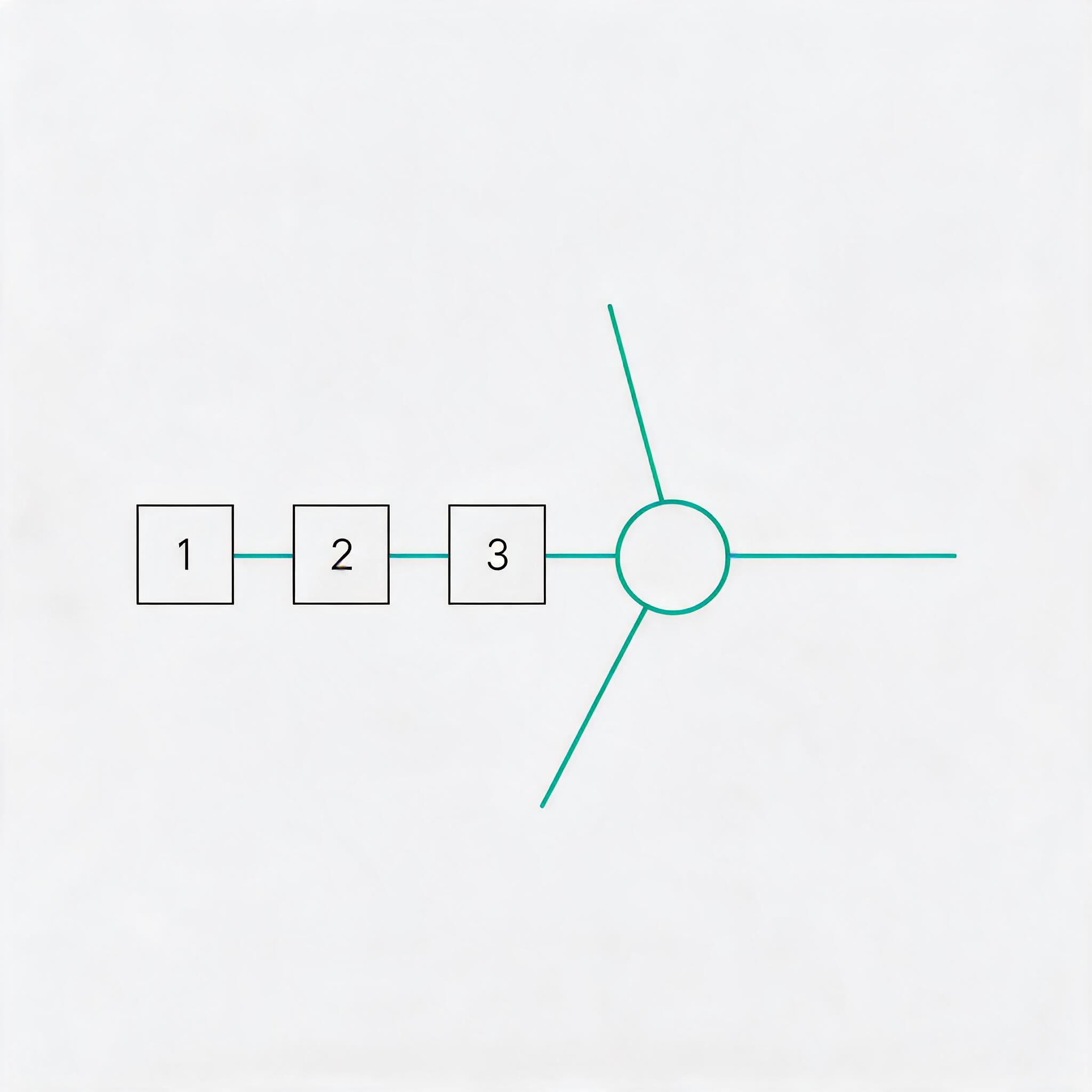
If your users need to gather around shared interests — a guild, a class, a fan group, a product community — a flat group chat runs out of room fast. Conversations collide, announcements get buried, and moderation becomes a free-for-all. ZEGOCLOUD’s ZIM answers this with a Discord-style model: a community that contains multiple channels, each with its own isolated message stream.
This guide is a hands-on integration walkthrough, not a concept pitch. By the end you will have a working in-app community: you will initialize the SDK and log in, create a community, add channels, invite and manage members, exchange channel messages, and apply mutes for moderation. The steps use the Android API names in the examples, but every step maps to the same guide set on iOS, macOS, Windows, and React Native.
Prerequisites
Before writing any community code, make sure two things are in place:
- A ZIM-enabled project. Follow the standard Send and receive messages guide to integrate the SDK, initialize it, and complete token-based authentication login. Community calls reuse the same
ZIMinstance and the same token mechanism — no extra permission declarations are required. - ZIM SDK 3.0.0 or later. The community and channel APIs shipped in ZIM 3.0.0. Older SDK versions simply do not contain these methods.
One commercial detail to know up front: community is a premium capability. It runs on the ZIM premium edition and must be activated by ZEGOCLOUD technical support before the calls will succeed. Once enabled, a community supports up to 100,000 members by default (expandable to unlimited) and up to 100 channels by default (expandable to 1,000), while a single user can join up to 100 communities by default (expandable to 500).
The object model: community, channel, member, mute
The code makes far more sense once the four objects it manipulates are clear.
- Community — the top-level container and the unit of user relationships. Users must create or join a community before any interaction. The product model is “Community–Channel–Thread” (Thread is planned for a future version); today everything lives in the first two tiers.
- Channel — the actual chat surface inside a community, functionally similar to a traditional group and carrying its own isolated message stream. Two channel types currently exist:
GENERAL, the default channel created automatically with the community and used for community-level tips and notifications, andPUBLIC, which owners and admins create afterward. Both behave identically; only the creation timing differs. Note for developers updating from earlier builds: the older private channel type has been removed — current SDK versions exposeGENERALandPUBLIConly, and joining a community auto-joins its default channel and all public channels. - Member — a user inside a community with one of three roles: owner (
1), admin (2), or regular member (3). Roles gate the management calls below. - Mute — the moderation primitive, available in two scopes: muting whole channels (by member-role scope) and muting individual members within one channel or all channels.
One ID distinction prevents an entire class of bugs: a channel’s channelID identifies it for management operations (create, update, dismiss), while its conversationID — obtained from the channel object returned by queryCommunityChannelList — is what you use to send messages and manage conversations. Never substitute one for the other.
Step 1: Initialize ZIM and log in
Community features hang off the same singleton used for ordinary messaging. Create the ZIM instance with your appID, then log a user in with a token:
ZIMAppConfig appConfig = new ZIMAppConfig();
appConfig.appID = 123456789L;       // replace with your AppID
appConfig.appSign = "yourAppSign";
ZIM.create(appConfig);

ZIM zim = ZIM.getInstance();
ZIMUserInfo userInfo = new ZIMUserInfo();
userInfo.userID = "user_001";
userInfo.userName = "Ada";

ZIMLoginConfig loginConfig = new ZIMLoginConfig();
loginConfig.token = "your_token";
zim.login(userInfo, loginConfig, new ZIMLoggedInCallback() {
    @Override
    public void onLoggedIn(ZIMError errorInfo) {
        if (errorInfo.code == ZIMErrorCode.SUCCESS) {
            // ready to create or join a community
        }
    }
});
Register a ZIMEventHandler right after login as well — community list, channel list, member-state, and message callbacks all arrive there, and you will wire them up in the steps below.
Step 2: Create a community
Call createCommunity (on iOS/macOS the equivalent is createCommunityWithCommunityInfo) with a ZIMCommunityInfo and a ZIMCommunityCreateConfig. The creator automatically becomes the owner and is automatically joined — no separate join call is needed.
ZIMCommunityInfo communityInfo = new ZIMCommunityInfo();
communityInfo.setCommunityID("community_001"); // blank = server ID starting #B
communityInfo.setCommunityName("Study Group HQ");
communityInfo.setCommunityAvatarUrl("https://example.com/avatar.png");

ZIMCommunityCreateConfig config = new ZIMCommunityCreateConfig();
config.setCommunityNotice("Welcome! Pick a subject channel and introduce yourself.");

HashMap<String, String> attributes = new HashMap<>();
attributes.put("term", "fall");
config.setCommunityAttributes(attributes); // up to 10 pairs by default

zim.createCommunity(communityInfo, config, new ZIMCommunityCreatedCallback() {
    @Override
    public void onCommunityCreated(ZIMCommunityFullInfo fullInfo, ZIMError errorInfo) {
        if (errorInfo.code == ZIMErrorCode.SUCCESS) {
            String communityID = fullInfo.getBaseInfo().getCommunityID();
            // the GENERAL default channel already exists
        }
    }
});
A custom communityID accepts numbers, English letters, and a defined set of symbols but cannot start with #. Names cap at 300 characters and notices at 500 (both configurable). Existing users who know the ID enter via joinCommunity; on joining they are added to the default and all public channels automatically. Watch for error codes 6001003 (already exists) and 6001007 (permission error). Page the joined-community list with queryCommunityList using the nextFlag cursor (start at 0, stop when it returns 0), and refresh in onCommunityListChanged.
Step 3: Create channels within the community
Every community gets one GENERAL channel at creation. Subject channels come from createCommunityChannel, restricted to owner and admins; the creator is auto-joined.
ZIMCommunityChannelInfo channelInfo = new ZIMCommunityChannelInfo();
channelInfo.setChannelID("ch_math");
channelInfo.setChannelName("math");
channelInfo.setCommunityID(communityID);

ZIMCommunityChannelCreateConfig channelConfig = new ZIMCommunityChannelCreateConfig();
channelConfig.setChannelNotice("Homework questions and exam prep");
zim.createCommunityChannel(channelInfo, channelConfig,
    new ZIMCommunityChannelCreatedCallback() {
        @Override
        public void onCommunityChannelCreated(ZIMCommunityChannelFullInfo c,
                                              ZIMError errorInfo) {
            if (errorInfo.code == ZIMErrorCode.SUCCESS) {
                // c.getConversationID() -> needed for messaging
            }
        }
    });
Repeat for “physics” and “history”. Enumerate channels with queryCommunityChannelList and cache each ZIMCommunityChannel: baseInfo.channelID drives management calls, conversationID drives messaging. The default GENERAL channel cannot be dismissed; others are removed with dismissCommunityChannel. Stay in sync through onCommunityChannelListChanged and onCommunityChannelInfoUpdated.
Step 4: Join and manage members
Populate the community with inviteUsersIntoCommunity, which adds up to 100 already-registered users per call directly, with no consent step; per-user failures come back in errorUserList.
ArrayList<String> userIDs = new ArrayList<>();
userIDs.add("user_2");
userIDs.add("user_3");
zim.inviteUsersIntoCommunity(userIDs, communityID,
    new ZIMCommunityUsersInvitedCallback() {
        @Override
        public void onCommunityUsersInvited(String communityID,
                                            ArrayList<ZIMErrorUserInfo> errorUserList,
                                            ZIMError errorInfo) {
            // errorUserList names users the invite failed for
        }
    });
The rest of the member surface is role-gated, which is what makes moderation scale:
queryCommunityMemberListpages through all members (samenextFlagpattern);queryCommunityMembersfetches specific users including role and mute state.updateCommunityMemberRolepromotes a member to admin or demotes them — owner only.kickCommunityMembersremoves up to 100 members per call — owner and admins only.transferCommunityOwnerhands over ownership; the previous owner becomes a regular member. The owner cannot leave vialeaveCommunitydirectly — they must transfer first or dismiss the community.
Live updates arrive through onCommunityMemberStateChanged (ENTERED/EXITED) and onCommunityMemberInfoUpdated (role, nickname, mute changes).
Step 5: Send and receive channel messages
Channel messaging reuses the standard sendMessage API. The community-specific part is the conversation type ZIMConversationType.COMMUNITY_CHANNEL, paired with the channel’s conversationID.
String conversationID = channel.getConversationID(); // NOT channelID

ZIMTextMessage textMessage = new ZIMTextMessage();
textMessage.setMessage("Does anyone have problem 4 done?");

ZIMMessageSendConfig msgConfig = new ZIMMessageSendConfig();
msgConfig.setPriority(ZIMMessagePriority.LOW);

zim.sendMessage(textMessage, conversationID,
    ZIMConversationType.COMMUNITY_CHANNEL, msgConfig,
    new ZIMMessageSentFullCallback() {
        @Override public void onMessageAttached(ZIMMessage message) { /* sending UI */ }
        @Override public void onMessageSent(ZIMMessage message, ZIMError error) {
            if (error.code == ZIMErrorCode.SUCCESS) { /* delivered */ }
        }
        @Override public void onMediaUploadingProgress(ZIMMediaMessage m, long c, long t) {}
        @Override public void onMultipleMediaUploadingProgress(ZIMMultipleMessage m,
            int mi, long ci, int ii, long ti, long tt) {}
    });
Keep two sends more than 100ms apart. Images, files, audio, video, custom, and combined messages work identically — same conversationID, same COMMUNITY_CHANNEL type, with upload progress in the callback. From SDK 3.0.0, all online messages (one-on-one, group, room, and community channel) arrive in the unified onMessageReceived callback; filter on receivedInfo.conversationType == COMMUNITY_CHANNEL and dispatch by the message’s conversationID. Offline backlog is delivered through the same callback after re-login where offline storage is enabled, and history is pulled with the standard get-message-history API using the channel conversationID.
Each channel is also a conversation: clearConversationUnreadMessageCount zeroes its badge on open, setConversationDraft stores a local draft, setConversationNotificationStatus silences one channel’s pushes, and onConversationChanged reflects unread and draft updates. Channels default to do-not-disturb while the community itself notifies; the community’s total unread sums only channels still in notification status.
Step 6: Apply mute for moderation
Moderation has two complementary levers. muteCommunityChannels freezes posting in one or more channels at once via ZIMCommunityChannelMuteConfig:
mode:NONE(0),NORMAL(1, regular members),ALL(2, everyone), orCUSTOM(3, supply aroleslist).duration: 1 to 2,592,001 seconds (roughly 30 days), or-1for permanent.
ArrayList<String> channelIDs = new ArrayList<>();
channelIDs.add("ch_math");

ZIMCommunityChannelMuteConfig muteConfig = new ZIMCommunityChannelMuteConfig();
muteConfig.setDuration(3600);  // one hour
muteConfig.setMode(ZIMCommunityChannelMuteMode.ALL);

zim.muteCommunityChannels(true, channelIDs, communityID, muteConfig,
    new ZIMCommunityChannelsMutedCallback() {
        @Override
        public void onCommunityChannelsMuted(String communityID, boolean isMute,
                                             ArrayList<String> errorChannelIDs,
                                             ZIMError errorInfo) {
            // errorChannelIDs lists channels the call failed on
        }
    });
Channel-level mute is the current scope — community-wide global muting is not yet supported. For individuals, muteCommunityMembers (owner/admins only) targets specific users; setting channelID confines the mute to one channel, while leaving it blank applies across all channels, with the same duration range. Combine both with kickCommunityMembers and updateCommunityMemberRole, and your server can layer additional policy on top. Note that community management operations themselves are currently client-SDK only, and change notifications arrive through client callbacks.
End-to-end example: a study group app with per-subject channels
- On launch,
ZIM.createwith the app config andloginwith the student’s token (SDK 3.0.0+). - A teacher calls
createCommunityfor “Study Group HQ”, becoming owner; theGENERALchannel exists immediately for announcements. - The teacher calls
createCommunityChannelthree times:ch_math,ch_physics,ch_history, each with its own notice. - The app invites classmates with
inviteUsersIntoCommunityin batches of up to 100; joining auto-places them in the default and public channels. A teaching assistant is promoted viaupdateCommunityMemberRole(ADMIN, ...). - Opening a subject reads the cached
conversationID(fromqueryCommunityChannelList), clears the badge withclearConversationUnreadMessageCount, sends questions throughsendMessage(..., COMMUNITY_CHANNEL), and renders answers fromonMessageReceivedfiltered to thatconversationID. - During a timed quiz the teacher calls
muteCommunityChannels(true, ["ch_math"], ..., mode ALL, duration 2700); a single disruptive student is instead handled withmuteCommunityMembersscoped to that channel.
The same sequence ports to iOS/macOS (e.g. createCommunity:config:callback:, queryCommunityChannelListByCommunityID:), Windows C++, Web/UTS, and Flutter — the community/channel guides are published for Android, iOS, macOS, Windows, and React Native, with platform-specific signatures for every step.
Key takeaways
- The integration path is short and fixed: initialize and log in → create/join community → create channels → manage members → send and receive with
COMMUNITY_CHANNEL→ moderate with mute. - Respect the two IDs:
channelIDfor management,conversationIDfor messaging and conversations. - Moderation is role-based and two-scoped — channel-wide mute by role (
NORMAL/ALL/CUSTOM) and per-member mute per channel or globally — plus kick and ownership transfer. Scale defaults (100,000 members, 100 channels) are expandable when the premium feature is activated.
FAQ
What SDK version do I need for communities?
Community and channel APIs arrived with ZIM 3.0.0, so use 3.0.0 or later.
How do I moderate messages in a channel?
Combine community member management with community mute to control posting: muteCommunityChannels controls who can post by role, muteCommunityMembers restrains specific members, and kickCommunityMembers removes users. Server-side moderation can layer on top.
Can a community have many channels?
Yes. A community is a container for multiple channels, each with its own messages and conversations — 100 by default, expandable to 1,000.
Is the integration the same across platforms?
The community/channel guides are published for Android, iOS, macOS, Windows, and React Native, with platform-specific API details in each guide.
Related posts
Let’s Build APP Together
Start building with real-time video, voice & chat SDK for apps today!
