

Implement call invitation
This doc will introduce how to implement the call invitation feature in the calling scenario.
Prerequisites
Before you begin, make sure you complete the following:
- Complete SDK integration and basic calling functions by referring to Quick start.
- Download the demo that comes with this doc.
- Activate the In-app Chat service.

Preview the effect
You can achieve the following effect with the demo provided in this doc:
| Home Page | Incoming Call Dialog | Waiting Page | Calling Page |
|---|---|---|---|
 |  |  |  |
Understand the tech
Implementation of the call invitation is based on the Call invitation (signaling) feature provided by the in-app chat (hereafter referred to as ZIM SDK), which provides the capability of call invitation, allowing you to send, cancel, accept, and reject a call invitation.
The process of call invitation implemented based on this is as follows: (taking "Alice calls Bob, Bob accepts and connects the call" as an example)
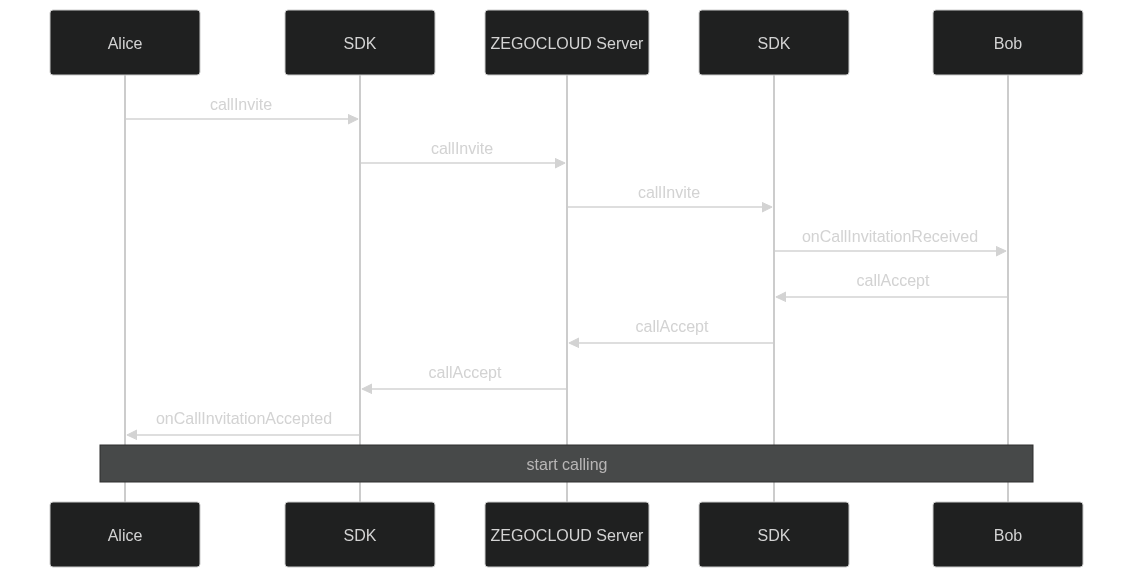
Here is a brief overview of the solution:
-
The caller can send a call invitation to a specific user by calling the
sendUserRequestmethod and waiting for the callee's response.- When the callee accepts the call invitation, the caller will receive a callback notification via
onUserRequestStateChanged,ZIMCallUserInfostatus isZIMCallUserStateAccepted. - When the callee rejects the call invitation, the caller will receive a callback notification via
onUserRequestStateChanged,ZIMCallUserInfostatus isZIMCallUserStateRejected. - When the callee does not respond within the timeout period, the caller will receive a callback notification via
onUserRequestStateChanged,ZIMCallUserInfostatus isZIMCallUserStateTimeout. - The caller can call
endUserRequestto end the call invitation during the waiting period.
- When the callee accepts the call invitation, the caller will receive a callback notification via
-
When the callee receives a call invitation, the callee will receive a callback notification via the
onInComingUserRequestReceivedevent and can choose to accept, reject, or not respond to the call.- If the callee wants to accept the call invitation, call the
acceptUserRequestmethod. - If the callee wants to reject the call invitation, call the
refuseUserRequestmethod. - When the caller end the call invitation, the callee will receive a callback notification via
onUserRequestEnded. - When the callee does not respond within the timeout period, the callee will receive a callback notification via
onInComingUserRequestTimeout.
- If the callee wants to accept the call invitation, call the
-
If the callee accepts the invitation, the call will begin.
Later in this document, the complete call process will be described in detail.
func sendUserRequest(userList: [String], config: ZIMCallInviteConfig, callback: ZIMCallInvitationSentCallback?)

func addUserToRequest(invitees: [String], requestID: String, config: ZIMCallingInviteConfig, callback: ZIMCallingInvitationSentCallback?)

func cancelUserRequest(requestID: String, config: ZIMCallCancelConfig, userList: [String], callback: ZIMCallCancelSentCallback?)

func refuseUserRequest(requestID: String, config: ZIMCallRejectConfig, callback: ZIMCallRejectionSentCallback?)

func acceptUserRequest(requestID: String, config: ZIMCallAcceptConfig, callback: ZIMCallAcceptanceSentCallback?)@objc optional func onInComingUserRequestReceived(requestID: String, info: ZIMCallInvitationReceivedInfo)
@objc optional func onInComingUserRequestTimeout(requestID: String, info: ZIMCallInvitationTimeoutInfo?)
@objc optional func onUserRequestStateChanged(info: ZIMCallUserStateChangeInfo, requestID: String)
@objc optional func onUserRequestEnded(info: ZIMCallInvitationEndedInfo, requestID: String)Implementation
Integrate and start to use the ZIM SDK
If you have not used the ZIM SDK before, you can read the following section:
Integrate the SDK automatically with Swift Package Manager
-
Open Xcode and click "File > Add Packages..." in the menu bar, enter the following URL in the "Search or Enter Package URL" search box of the "Apple Swift Packages" pop-up window:
https://github.com/zegolibrary/zim-ios -
Specify the SDK version you want to integrate in "Dependency Rule" (Recommended: use the default rule "Up to Next Major Version"), and then click "Add Package" to import the SDK. You can refer to Apple Documentation for more details.
After successful integration, you can use the Zim SDK like this:
import ZIMCreating a ZIM instance is the very first step, an instance corresponds to a user logging in to the system as a client.
func initWithAppID(_ appID: UInt32, appSign: String?) {
    let zimConfig: ZIMAppConfig = ZIMAppConfig()
    zimConfig.appID = appID
    zimConfig.appSign = appSign
    self.zim = ZIM.shared()
    if self.zim == nil {
        self.zim = ZIM.create(with: zimConfig)
    }
    self.zim?.setEventHandler(self)
}Later on, we will provide you with detailed instructions on how to use the ZIM SDK to develop the call invitation feature.
Manage multiple SDKs more easily
In most cases, you need to use multiple SDKs together. For example, in the call invitation scenario described in this doc, you need to use the zim sdk to implement the call invitation feature, and then use the zego_express_engine sdk to implement the calling feature.
If your app has direct calls to SDKs everywhere, it can make the code difficult to manage and troubleshoot. To make your app code more organized, we recommend the following way to manage these SDKs:
- Create a wrapper layer for each SDK so that you can reuse the code to the greatest extent possible.
Create a ZIMService class for the zim sdk, which manages the interaction with the SDK and stores the necessary data. Please refer to the complete code in ZIMService.swift.
class ZIMService: NSObject {

    // ...
    func initWithAppID(_ appID: UInt32, appSign: String?) {
        let zimConfig: ZIMAppConfig = ZIMAppConfig()
        zimConfig.appID = appID
        zimConfig.appSign = appSign ?? ""
        self.zim = ZIM.shared()
        if self.zim == nil {
            self.zim = ZIM.create(with: zimConfig)
        }
        self.zim?.setEventHandler(self)
    }

    // ...
}Similarly, create an ExpressService class for the zego_express_engine sdk, which manages the interaction with the SDK and stores the necessary data. Please refer to the complete code in ExpressService.swift.
class ExpressService: NSObject {

    // ...
    func initWithAppID(_ appID: UInt32, appSign: String) {
        let profile = ZegoEngineProfile()
        profile.appID = appID
        profile.appSign = appSign
        profile.scenario = .default
        let config: ZegoEngineConfig = ZegoEngineConfig()
        config.advancedConfig = ["notify_remote_device_unknown_status": "true", "notify_remote_device_init_status":"true"]
        ZegoExpressEngine.setEngineConfig(config)
        ZegoExpressEngine.createEngine(with: profile, eventHandler: self)
    }
    // ...
}With the service, you can add methods to the service whenever you need to use any SDK interface.
class ZIMService: NSObject {

    // ...
    func connectUser(userID: String, userName: String, token: String?, callback: CommonCallback?) {
        let user = ZIMUserInfo()
        user.userID = userID
        user.userName = userName
        userInfo = user
        zim?.login(with: user, token: token ?? "") { error in
            callback?(Int64(error.code.rawValue), error.message)
        }
    }
}- After completing the service encapsulation, you can further simplify the code by creating a
ZegoSDKManagerto manage these services, as shown below. Please refer to the complete code in ZegoSDKManager.swift.
class ZegoSDKManager: NSObject {

    static let shared = ZegoSDKManager()

    var expressService = ExpressService.shared
    var zimService = ZIMService.shared


    func initWithAppID(_ appID: UInt32, appSign: String) {
        expressService.initWithAppID(appID, appSign: appSign)
        zimService.initWithAppID(appID, appSign: appSign)
    }

}In this way, you have implemented a singleton class that manages the SDK services you need. From now on, you can get an instance of this class anywhere in your project and use it to execute SDK-related logic, such as:
- When the app starts up: call
ZegoSDKManager.shared.initWithAppID(appID,appSign) - When starting a call: call
ZegoSDKManager.shared.loginRoom(roomID, scenario, callback) - When ending a call: call
ZegoSDKManager.shared.logoutRoom()
Later, we will introduce how to add call invitation feature based on this.
Send a call invitation
- Pass extension information
When the caller initiates a 1v1 or group call, not only specifying the callee, but also passing on information to the callee is allowed, such as whether to initiate a video call or an audio-only call.
The sendUserRequest method allows for passing a string type of extended information extendedData. This extended information will be passed to the callee. You can use this method to allow the caller to pass any information to the callee.
In the example demo of this solution, you will use the [String : Any] type to define the extendedData of the call invitation, and you need to convert it to a string in JSON format and pass it to the callee when initiating the call. (See complete source code). The extendedData includes the call type.
// 1v1 call
func sendVideoCallInvitation(_ targetUserID: String, callback: CallRequestCallback?) {
    let callType: CallType = .video
    if let currentCallData = currentCallData,
        let callID = currentCallData.callID
    {
        addUserToRequest(userList: [targetUserID], requestID: callID, callback: callback)
    } else {
        let extendedData = getCallExtendata(type: callType)
        sendUserRequest(userList: [targetUserID], extendedData: extendedData.toString() ?? "", type: callType, callback: callback)
    }
}

// group call
func sendGroupVideoCallInvitation(_ targetUserIDs: [String], callback: CallRequestCallback?) {
    let callType: CallType = .video
    if let currentCallData = currentCallData,
        let callID = currentCallData.callID
    {
        addUserToRequest(userList: targetUserIDs, requestID: callID, callback: callback)
    } else {
        let extendedData = getCallExtendata(type: callType)
        sendUserRequest(userList: targetUserIDs, extendedData: extendedData.toString() ?? "", type: callType, callback: callback)
    }
}

// sendUserRequest
func sendUserRequest(userList: [String], extendedData: String, type: CallType, callback: CallRequestCallback?) {
    guard let localUser = ZegoSDKManager.shared.currentUser else { return }
    ZegoSDKManager.shared.zimService.queryUsersInfo(userList) { fullInfoList, errorUserInfoList, error in
        if error.code == .success {
            self.currentCallData = ZegoCallDataModel()
            let config = ZIMCallInviteConfig()
            config.mode = .advanced
            config.extendedData = extendedData
            config.timeout = 60
            ZegoSDKManager.shared.zimService.sendUserRequest(userList: userList, config: config) { requestID, sentInfo, error in
                if error.code == .success {
                    let errorUser: [String] = sentInfo.errorUserList.map { userInfo in
                        userInfo.userID
                    }
                    let sucessUsers = userList.filter { userID in
                        return !errorUser.contains(userID)
                    }
                    if !sucessUsers.isEmpty {
                        self.currentCallData?.callID = requestID
                        self.currentCallData?.inviter = CallUserInfo(userID: localUser.id)
                        self.currentCallData?.type = type
                        self.currentCallData?.callUserList = []
                    } else {
                        self.clearCallData()
                    }
                } else {
                    self.clearCallData()
                }
                guard let callback = callback else { return }
                callback(error.code.rawValue, requestID)
            }
        } else {
            guard let callback = callback else { return }
            callback(error.code.rawValue, nil)
        }
    }
}Note: The caller needs to check the error info in
ZIMServiceInviteUserCallBackto determine if the call is successful and handle exception cases such as call failure due to network disconnection on the caller's phone.
- Implement call waiting page
In the 1v1 calling scenario, as a caller, after initiating the call, you will enter the call waiting page, where you can listen to the status changes of the call. See complete source code for details. The key code is as follows:
class CallWaitViewController: UIViewController {

    // ...
    override func viewDidLoad() {
        super.viewDidLoad()
        ZegoCallManager.shared.addCallEventHandler(self)
    }
    // ...
}extension CallWaitingViewController: ZegoCallManagerDelegate {
// ...
func onInComingCallInvitationTimeout(requestID: String) {
self.dismiss(animated: true)
}
// ...
}In the group call scenario, as a caller, after initiating the call, you will enter the calling page, where you can listen to the status changes of the call. See complete source code for details. The key code is as follows:
class CallingViewController: UIViewController {

    override func viewDidLoad() {
        super.viewDidLoad()
        ZegoCallManager.shared.addCallEventHandler(self)
        //...
    }
}

extension CallingViewController: ZegoCallManagerDelegate {
    func onCallUserUpdate(userID: String, extendedData: String) {
        //...
    }

    func onOutgoingCallInvitationAccepted(userID: String, extendedData: String) {
        //...
    }

    func onCallUserQuit(userID: String, extendedData: String) {
        //...
    }

    func onOutgoingCallInvitationTimeout(userID: String, extendedData: String) {
        //...
    }

    func onCallEnd() {
        ZegoCallManager.shared.leaveRoom()
        self.dismiss(animated: true)
    }
}- In the 1v1 calling scenario, when the callee rejects the call invitation, you will return to the previous page and the call ends. Similarly, when the callee doesn't respond within the timeout, the call ends and returns to the previous page.
extension HomeViewController: ZegoCallManagerDelegate {
    //...
    func onCallEnd() {
        callWaitingVC?.dismiss(animated: true)
        ZegoIncomingCallDialog.hide()
    }
    //...
}- In the group call scenario, when there are waiting or accepted callees in the call invitation, the call is in progress, otherwise, you will return to the previous page and the call ends.
class CallingViewController: UIViewController, ZegoCallManagerDelegate {

    override func viewDidLoad() {
        super.viewDidLoad()
        ZegoCallManager.shared.addCallEventHandler(self)
        //...
    }

    //...
    func onCallEnd() {
        self.dismiss(animated: true)
    }
    //...
}- After initiating a call, the caller can end the call at any time by calling the
endUserRequestmethod.
In the
endUserRequestmethod, you are required to pass arequestID.requestIDis a unique identifier for a call invitation that can be obtained from theZIMServiceCancelInviteCallBackparameter of thesendUserRequestmethod.
//1v1 calling scenario end call
class CallWaitingViewController: UIViewController {
    // ...
    @IBAction func handupButtonClick(_ sender: Any) {
        guard let callID = ZegoCallManager.shared.currentCallData?.callID else { return }
        ZegoCallManager.shared.endCall(callID, callback: nil)
        self.dismiss(animated: true)
    }
    // ...
}//group call scenario end call
class CallingViewController: UIViewController {
// ...
@objc func buttonClick(_ sender: UIButton) {
switch sender.tag {
case 100:
ZegoCallManager.shared.quitCall(ZegoCallManager.shared.currentCallData?.callID ?? "", callback: nil)
self.dismiss(animated: true)
case 101:
//...
case 102:
//...
case 103:
//...
case 104:
//...
default:
break
}
}
// ...
}Invitation during calling
When user is in a call, user can call the inviteUserToJoinCall add new callee to the current call.
@IBAction func addMemberClick(_ sender: Any) {
    let addAlterView: UIAlertController = UIAlertController(title: "add member", message: nil, preferredStyle: .alert)
    //...
    let sureAction: UIAlertAction = UIAlertAction(title: "sure", style: .default) { action in
        //...
        ZegoCallManager.shared.inviteUserToJoinCall([userID], callback: nil)
    }
    //...
    self.present(addAlterView, animated: true)
}Respond to call invitation
When the callee receives a call invitation, they will receive the callback notification via onInComingUserRequestReceived.
-
To accept or reject the call invite, the callee can call the
acceptCallRequestorrejectCallRequestmethod. -
The callee can obtain the
extendedDatapassed by the caller inZIMCallInvitationReceivedInfo. -
When the callee accepts or rejects the call invitation, they can use the
extendedDataparameter in the interface to pass additional information to the caller, such as the reason for rejection being due to user rejection or a busy signal.
The callee needs to check the
errorInfoincallbackto determine if the response is successful when calling the methods to accept or reject the call invite, and handle exception cases such as response failure due to network disconnection on the callee's phone.
Next, we will use the demo code to illustrate how to implement this part of the functionality.
- When the callee receives a call invitation:
- If the callee is not in the busy state: the
ZegoIncomingCallDialogwill be triggered to let the callee decide whether to accept or reject the call. - If the callee is in the busy state: the invitation will be automatically rejected, and the caller will be informed that the callee is in the busy state.
For details, see complete source code. The key code is as follows:
// If the callee is in the busy state: the invitation will be automatically rejected, and the caller will be informed that the callee is in the busy state.
class ZegoCallManager: ZIMServiceDelegate {
    // ...
    func onInComingUserRequestReceived(requestID: String, info: ZIMCallInvitationReceivedInfo) {
        let callExtendedData = ZegoCallExtendedData.parse(extendedData: info.extendedData)
        guard let callType = callExtendedData?.type,
              let _ = ZegoSDKManager.shared.currentUser
        else { return }
        if !isCallBusiness(type: callType.rawValue) { return }
        let inRoom: Bool = (ZegoSDKManager.shared.expressService.currentRoomID != nil)
        let inviteeList: [String] = info.callUserList.map { user in
            user.userID
        }
        if inRoom || (currentCallData != nil && currentCallData?.callID != requestID) {
            for delegate in callEventHandlers.allObjects {
                delegate.onInComingCallInvitationReceived?(requestID: requestID, inviter: info.inviter, inviteeList: inviteeList, extendedData: info.extendedData)
            }
            // ... see CallService's onInComingUserRequestReceived
            return
        }
    }
}

// If the callee is not in the busy state: the `ZegoIncomingCallDialog` will be triggered to let the callee decide whether to accept or reject the call.
class CallService: NSObject, ZegoReciverCallEventHandle {

    override init() {
        super.init()
        ZegoCallManager.shared.addCallEventHandler(self)
    }

    func onInComingCallInvitationReceived(requestID: String, inviter: String, inviteeList: [String], extendedData: String) {
        let extendedDict: [String : Any] = extendedData.toDict ?? [:]
        let callType: CallType? = CallType(rawValue: extendedDict["type"] as? Int ?? -1)
        guard let callType = callType else { return }
        // receive call
        let inRoom: Bool = (ZegoSDKManager.shared.expressService.currentRoomID != nil)
        if inRoom || (ZegoCallManager.shared.currentCallData?.callID != requestID) {
            let extendedData: [String : Any] = ["type": callType.rawValue, "reason": "busy", "callID": requestID]
            ZegoCallManager.shared.rejectCallInvitationCauseBusy(requestID: requestID, extendedData: extendedData.jsonString, type: callType, callback: nil)
            return
        }
        //...
    }

}- When the callee wants to accept the call invite: after the
ZegoIncomingCallDialogpops up, when the accept button is clicked,callAcceptmethod will be called and will receive2callback enter theCallingPage.
For details, see complete source code. The key code is as follows:
class ZegoIncomingCallDialog: UIView {

    // ...
    @IBOutlet weak var acceptButton: UIButton!
    @IBOutlet weak var rejectButton: UIButton!

    // ...

    @IBAction func acceptButtonClick(_ sender: UIButton) {
        guard let inviter = callData?.inviter,
              let callID = callData?.callID
        else { return }
        ZegoCallManager.shared.acceptCallInvitation(requestID: callID) { requestID, error in
            //...
        }
    }
}

class HomeViewController: UIViewController {

    override func viewDidLoad() {
        super.viewDidLoad()
        ZegoCallManager.shared.addCallEventHandler(self)
        //...
    }
}

extension HomeViewController: ZegoCallManagerDelegate {

    func onCallStart() {
        callWaitingVC?.dismiss(animated: true)
        showCallPage()
    }
    //...
}- When the callee wants to reject the call invite: after the
ZegoIncomingCallDialogpops up, when the reject button is clicked,callRejectmethod will be called.
For details, see complete source code. The key code is as follows:
class ZegoIncomingCallDialog: UIView {

    // ...
    @IBOutlet weak var acceptButton: UIButton!
    @IBOutlet weak var rejectButton: UIButton!

    // ...
    @IBAction func rejectButtonClick(_ sender: UIButton) {
        guard let callID = callData?.callID else { return }
        ZegoCallManager.shared.rejectCallInvitation(requestID: callID, callback: nil)
        ZegoIncomingCallDialog.hide()
    }
    // ...
}- When the callee doesn't respond: after the
ZegoIncomingCallDialogpops up, if the call invitation times out due to the callee's lack of response, theZegoIncomingCallDialogneeds to disappear.
For details, see complete source code. The key code is as follows:
extension HomeViewController: ZegoCallManagerDelegate {
    // ...
    func onInComingCallInvitationTimeout(requestID: String) {
        //....
        ZegoIncomingCallDialog.hide()
    }
    // ...
}callInvitationReceived:
func zim(_ zim: ZIM, callInvitationReceived info: ZIMCallInvitationReceivedInfo, callID: String)ZIMCallInvitationReceivedInfo inside the callInvitationReceived:
public class ZIMCallInvitationReceivedInfo {
    public int timeout;
    public String inviter;
    public String extendedData;

    public ZIMCallInvitationReceivedInfo() {}
}Interfaces used to accept and reject the call invite:
func callReject(with callID: String, config: ZIMCallRejectConfig, callback: @escaping ZIMCallRejectionSentCallback)
func callAccept(with callID: String, config: ZIMCallAcceptConfig, callback: @escaping ZIMCallAcceptanceSentCallback)

public class ZIMCallAcceptConfig: NSObject {
  public var extendedData: String?
}

public class ZIMCallRejectConfig: NSObject {
  public var extendedData: String?
}

public typealias ZIMCallAcceptanceSentCallback = (_ callID: String, _ errorInfo: ZIMError?) -> Void

public typealias ZIMCallRejectionSentCallback = (_ callID: String, _ errorInfo: ZIMError?) -> VoidImplement busy state
Finally, you also need to check the user's busy status, similar to the busy signal logic when making a phone call.
A busy signal refers to the situation where, when you try to dial a phone number, the target phone is being connected by other users, so you cannot connect with the target phone. In this case, you usually hear a busy tone or see a busy line prompt.
In general, being called, calling, and being in a call are defined as busy states. In the busy state, you can only handle the current call invitation or call, and cannot accept or send other call invitations. The state transition diagram is as follows:

In the example demo, you can use ZegoSDKManager to manage the user's busy status:
- When transitioning between states, set the call data to
currentCallData, or clear the call data ofcurrentCallData.
// When startCall or CallInvitation Received
let callData = ZegoCallDataModel()

// When IncomingCallInvitation end, Timeout, etc.
ZegoCallManager.shared.clearCallData()- Then, when receiving a call invitation, check whether the callee is in a busy state. If so, reject the call invitation directly and inform the caller that the call was rejected due to being busy.
For details, see complete source code. The key code is as follows:
class CallService: NSObject, ZegoCallManagerDelegate {

    // ...
    func onInComingCallInvitationReceived(requestID: String, inviter: String, inviteeList: [String], extendedData: String) {
        let extendedDict: [String : Any] = extendedData.toDict ?? [:]
        let callType: CallType? = CallType(rawValue: extendedDict["type"] as? Int ?? -1)
        guard let callType = callType else { return }
        // receive call
        let inRoom: Bool = (ZegoSDKManager.shared.expressService.currentRoomID != nil)
        if inRoom || (ZegoCallManager.shared.currentCallData?.callID != requestID) {
            let extendedData: [String : Any] = ["type": callType.rawValue, "reason": "busy", "callID": requestID]
            ZegoCallManager.shared.rejectCallInvitationCauseBusy(requestID: requestID, extendedData: extendedData.jsonString, type: callType, callback: nil)
            return
        }
        //...
    }
}Start the call
After the callee accepts the call invitation, the caller will receive the callback notification via onUserRequestStateChanged, and both parties can start the call.
You can refer to the implementation of the call page in Quick start, or you can directly refer to the demo's sample code included in this doc.
In this demo, we use
callIDas theroomIDforzego_express_sdk. For information onroomID, refer to Key concepts.
Resolution And Pricing Attention!
Please pay close attention to the relationship between video resolution and price when implementing video call, live streaming, and other video scenarios.
When playing multiple video streams in the same room, the billing will be based on the sum of the resolutions, and different resolutions will correspond to different billing tiers.
The video streams that are included in the calculation of the final resolution are as follows:
- Live streaming video view (such as host view, co-host view, PKBattle view, etc.)
- Video call's video view for each person
- Screen sharing view
- Resolution of the cloud recording service
- Resolution of the Live stream creation
Before your app goes live, please make sure you have reviewed all configurations and confirmed the billing tiers for your business scenario to avoid unnecessary losses. For more details, please refer to Pricing.
Conclusion
Congratulations! Hereby you have completed the development of the call invitation feature.
If you have any suggestions or comments, feel free to share them with us via Discord. We value your feedback.