
How to set and get SDK logs and stack information for Express?
Native Platform
Native platform mainly refers to Android, iOS, macOS and Windows platforms.
Set log properties
By default, the SDK generates two types of log files:
-
TXT log files starting with "zegoavlog", with a default maximum size of 5MB (5 * 1024 * 1024 Bytes) per log file.
-
Zip compressed files named
zegoavlog{number}-{timestamp}. After decompression, you get a TXT log file namedzegoavlog{number}-{timestamp}. Thezegoavlog{number}may be different, but the{timestamp}is the same.For example, zegoavlog3-16901111.zip decompresses to zegoavlog2-16901111.txt log file.
The default storage paths for each platform are:
- Android: "/storage/Android/data/[application package name]/files"
- iOS: "~/Library/Caches/ZegoLogs"
- macOS:
- Sandbox: "~/Library/Containers/[application package name Bundle ID]/Data/Library/Caches/ZegoLogs"
- Non-sandbox: "~/Library/Caches/ZegoLogs"
- Windows: "C:\Users\current username\AppData\[application package name]\ZEGO.SDK\ZegoLogs"
- Linux: Stored by priority (if a higher-priority path has no read/write permission, it automatically falls back to the next priority path):
- Priority 1 (regular user): "/home/[username]/zegolog"
- Priority 1 (root superuser): "/root/zegolog"
- Priority 2: "/var/lib/zegolog"
- Priority 3: "/tmp/zegolog"
- HarmonyOS: "/data/app/el2/100/base/{package name}/files"
Developers can also set ZegoLogConfig properties, including the log storage path "logPath" and the maximum log file size "logSize", and call the setLogConfig interface to customize the SDK's log properties.
The setLogConfig interface must be called before calling createEngine for the log properties to take effect. If set after createEngine, it will take effect at the next createEngine after destroyEngine.
Android
For example, set the log storage path to "/data/user/0/package name/files" and the maximum size of a single log file to 5MB:
ZegoLogConfig logConfig;
// Set log storage path
logConfig.logPath = getApplicationContext().getFilesDir().getAbsolutePath();
// Set the maximum size of a single log file
logConfig.logSize = 5242880L;
ZegoExpressEngine.setLogConfig(logConfig);API Reference: ZegoLogConfig, setLogConfig
iOS/macOS
For example, set the log storage path to "[[NSSearchPathForDirectoriesInDomains(NSCachesDirectory, NSUserDomainMask, YES) lastObject] stringByAppendingString:@"/ZegoLogs"]" and the maximum size of a single log file to 5MB:
// Set log storage path
NSString *appLogPath = [[NSSearchPathForDirectoriesInDomains(NSCachesDirectory, NSUserDomainMask, YES) lastObject] stringByAppendingString:@"/ZegoLogs"];
ZegoLogConfig *logConfig = [[ZegoLogConfig alloc] init];
logConfig.logPath = appLogPath;
// Set the maximum size of a single log file
logConfig.logSize = 5 * 1024 * 1024;
[ZegoExpressEngine setLogConfig:logConfig];API Reference:
- iOS: ZegoLogConfig, setLogConfig
- macOS: ZegoLogConfig, setLogConfig
Windows/Linux
For example, set the log storage path to "/Users/zego/Log/log.txt" and the maximum size of a single log file to 5MB:
ZegoLogConfig logConfig;
// Set log storage path
logConfig.logPath = "/Users/zego/Log/log.txt";
// Set the maximum size of a single log file
logConfig.logSize = 5242880L;
ZegoExpressSDK::setLogConfig(logConfig);API Reference: ZegoLogConfig, setLogConfig
HarmonyOS
For example, set the log storage path to "/data/storage/el2/base/files" and the maximum size of a single log file to 5MB:
// set log config
let logConfig:ZegoLogConfig = new ZegoLogConfig();
logConfig.logPath = path;
logConfig.logSize = 5 *1024 * 1024;
ZegoExpressEngine.setLogConfig(logConfig)API Reference: ZegoLogConfig, setLogConfig
Get log information
Android, iOS, macOS, Windows, Linux and HarmonyOS platforms can get SDK log information according to the following methods.
The following paths for getting logs are all based on the SDK's default path. If developers have customized the storage path of log files, please get them from the corresponding path.
Android
In the "/storage/Android/data/[application package name]/files" path, TXT files starting with "zegoavlog" are log information.
iOS/iPadOS
- Connect the iOS device to Mac, open Xcode, and select "Window > Devices and Simulators" from the top menu bar.

- Select the specified device on the left, then find the App that needs to get logs in "INSTALLED APPS", click the gear icon below, select "Download Container..." and save it.

- Open "Finder" to find the saved ".xcappdata" file, right-click and select "Show Package Contents", select the "AppData/Library/Caches/ZegoLogs" directory. TXT files starting with "zegoavlog" are log information.
macOS
-
Sandbox: In the "~/Library/Containers/[application package name Bundle ID]/Data/Library/Caches/ZegoLogs" path, TXT files starting with "zegoavlog" are log information.
-
Non-sandbox: In the "~/Library/Caches/ZegoLogs" path, TXT files starting with "zegoavlog" are log information.
Windows
The log folder is named: "program process name" + "ZEGO.SDK". In "My Computer" path, directly enter "%APPDATA%" and press Enter to locate the log folder storage directory. TXT files starting with "zegoavlog" are log information.
Linux
In the log folder, TXT files starting with "zegoavlog" are log information.
The Linux platform stores logs by priority in the following paths by default: "/home/[username]/zegolog" (regular user), "/root/zegolog" (root superuser), "/var/lib/zegolog", and "/tmp/zegolog" (if a higher-priority path has no read/write permission, it automatically falls back to the next priority path). If developers have customized the log path, please search according to the SDK log file path customized in the setLogConfig interface.
HarmonyOS
Connect the HarmonyOS device to Mac/PC, open devEco-studio, select the Device File Browser module, open the directory "/data/app/el2/100/base/{package name}/files/" to find txt or zip files starting with "zegoavlog".
Get stack information
When a crash occurs, the SDK generates crash stack information. Android, iOS, macOS, Windows, Linux and HarmonyOS platforms can get SDK stack information according to the following methods.
Android
- Real-time log analysis
adb logcat | ndk-stack -sym [directory where the so dynamic library of the target abi (armeabi/armeabi-v7a/arm64-v8a) is located]
For example:
adb logcat | ndk-stack -sym /path/to/your/project/armeabi-v7a
- Get logs first and then analyze (use
adb logcatto save log files, then analyze withndk-stackcommand)
adb logcat > xx.log
ndk-stack -sym [directory where the so dynamic library of the target abi is located] -dump [log file]
For example:
adb logcat > crash.log
ndk-stack -sym /path/to/your/project/armeabi-v7a -dump crash.log
iOS/iPadOS
If the first method cannot get stack information, you can use the second method.
There are two ways to get it:
- First Xcode method:
- Connect the iOS device to Mac, open Xcode, and select "Window > Devices and Simulators" from the top menu bar.
- Select the specified device on the left, then click "View Device Logs", find the log corresponding to the application package name in Process and the corresponding time with Type as Crash, right-click on this log and select "Export Log". The saved ".crash" file is the stack information.
- Second Xcode method:
- Connect the iOS device to Mac, open Xcode, and select "Window > Devices and Simulators" from the top menu bar.
- Select the specified device on the left, then click "Open Recent Logs", and find the ".ips" file corresponding to the time as the stack information.
macOS
In the "~/Library/Logs/DiagnosticReports" path, files ending with ".crash" are stack information.
Windows
- Find the registry path:
HKEY_LOCAL_MACHINE\SOFTWARE\Microsoft\Windows\WindowsError Reporting\LocalDumps- In the right window, create new string values DumpCount, DumpFolder, DumpType and modify their values as follows: DumpType values: 0 = Create a custom dump 1 = Mini dump 2 = Full dump
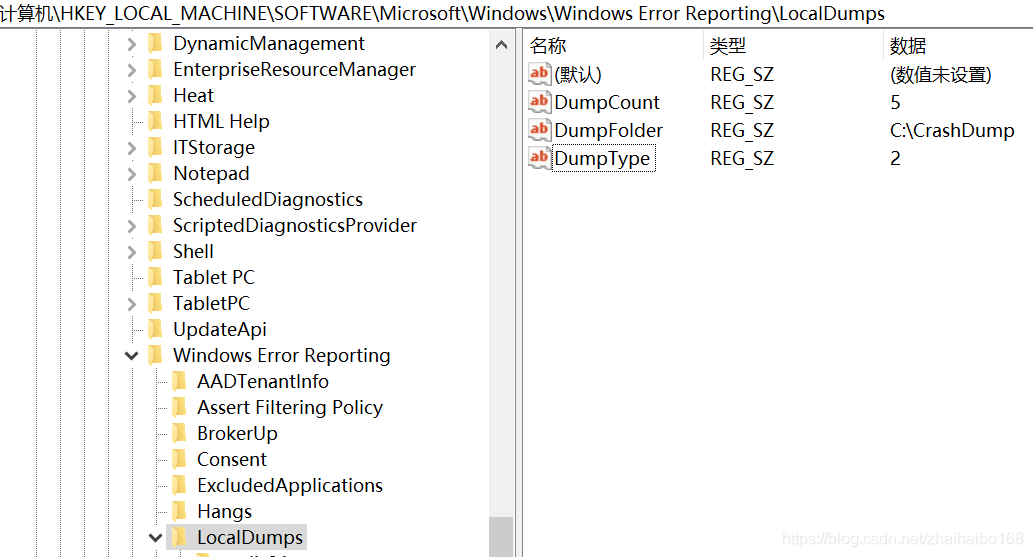
- When the program crashes, the system will generate a Dump file for the corresponding program in the DumpFolder directory set above, which is the stack information.
Linux
- Open core switch
- Command line method
# Enter the following command in the command line ulimit -c unlimited- Modify configuration file method
vim /etc/security/limits.conf # In the opened file, remove the comment before the line containing soft core 0 and change 0 to unlimited - Modify core generation path and naming rules
By default, after opening the core switch using any of the above methods, when the program crashes, a stack information file named core will be generated in the directory where the program was started. The newly generated core will overwrite the existing core.
By modifying /proc/sys/kernel/core_pattern, you can control the location and file format of core files
# For example: generate all core files to the /corefile directory, with the file name format as core-command name-pid-timestamp.
echo "/corefile/core-%e-%p-%t" > /proc/sys/kernel/core_patternHarmonyOS
Connect the HarmonyOS device to Mac/PC, open devEco-studio, select the Log module, open the FaultLog column to find the corresponding package name. There are two directories: cppcrash and jscrash, which contain the crash information of the native layer and the ets layer. Right-click on the file to export the crash stack information.
Web Platform
The Web platform has log reporting enabled by default.
ZEGO recommends developers use the default log configuration. If there are special requirements, you can refer to the following instructions to set the log output level.
Set log output level
Call the setLogConfig interface and set the log level printed by the local console through the "logLevel" property in the ZegoLogConfig object.
| Property | Meaning | Log Level |
|---|---|---|
| logLevel | Local console log level |
|
const config = {
    logLevel: 'debug',
};
zg.setLogConfig(config);Other Platforms
When using cross-platform frameworks such as Flutter, Electron, uni-app, Unity3D, React Native, etc., you can refer to the above Native Platform methods for setting and getting logs.
uni-app and React Native do not support setting paths and can only get logs from the default path.