提交工单
咨询集成、功能及报价等问题
You can refer to this document to understand the effects of the offline call invitation (system-calling UI) and complete the basic integration.
If your project needs Firebase integration or customization of features like ringtone and UI, complete the basic integration first and then refer to Customize the call and Enhance the call for further configuration.
Offline call invitation configuration is complex. If you only require online call invitations, please skip the steps related to firebase console.
Recorded on Xiaomi , the outcome may differ on different devices.
| Online call | online call (Android App background) | offline call (Android App killed) |
|---|---|---|
) |
) |
) |
jitpack configuration.settings.gradle file to add the jitpack to dependencyResolutionManagement > repositories like this:dependencyResolutionManagement {
repositoriesMode.set(RepositoriesMode.FAIL_ON_PROJECT_REPOS)
repositories {
google()
mavenCentral()
maven { url 'https://maven.zego.im' } // <- Add this line.
maven { url 'https://www.jitpack.io' } // <- Add this line.
}
}If you can't find the above fields in settings.gradle, it's probably because your Android Gradle Plugin version is lower than v7.1.0.
For more details, see Android Gradle Plugin Release Note v7.1.0.
build.gradle file to add the jitpack to allprojects->repositories like this: allprojects {
repositories {
google()
mavenCentral()
maven { url 'https://maven.zego.im' } // <- Add this line.
maven { url "https://jitpack.io" } // <- Add this line.
}
}build.gradle file:dependencies {
...
implementation 'com.github.ZEGOCLOUD:zego_uikit_prebuilt_call_android:+' // Add this line to your module-level build.gradle file's dependencies, usually named [app].
}notification : if your targetSdk in project is 33 or after, please dynamic request notification permissions.Without this permission,we can't send notifications. Please refer to Notification runtime permission for more details.
Appear on top / Display pop-up window: we need 'Appear on top ' or 'Display pop-up window' permission on some phones such as 'Xiaomi',without this permission,we can't show offline invitation calls.You can request this permission as follows:
 // need a activityContext.
PermissionX.init(activityContext).permissions(permission.SYSTEM_ALERT_WINDOW)
   .onExplainRequestReason(new ExplainReasonCallback() {
       @Override
       public void onExplainReason(@NonNull ExplainScope scope, @NonNull List<String> deniedList) {
           String message = "We need your consent for the following permissions in order to use the offline call function properly";
           scope.showRequestReasonDialog(deniedList, message, "Allow", "Deny");
       }
   }).request(new RequestCallback() {
       @Override
       public void onResult(boolean allGranted, @NonNull List<String> grantedList,
           @NonNull List<String> deniedList) {
       }
   });
Autostart: Some devices require special permissions to be enabled in order for your app to automatically display in the foreground when receiving a offline push message (such as Xiaomi). Therefore, you need to guide your app users to enable autostart permissions to make the feature work.
) |
) |
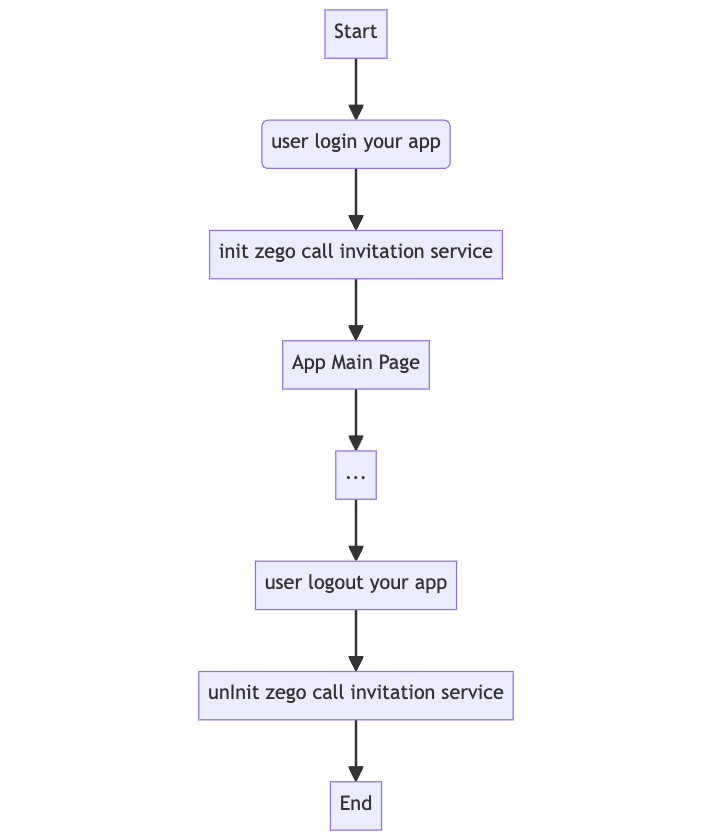
Call the init method After the user logs in, and specify the userID and userName for connecting the Call Kit service.
We recommend calling this method immediately after the user logs into your app.
)
Application application = ; // Android's application context
long appID = ;   // yourAppID
String appSign =;  // yourAppSign
String userID =; // yourUserID, userID should only contain numbers, English characters, and '_'.
String userName =;   // yourUserName

ZegoUIKitPrebuiltCallInvitationConfig callInvitationConfig = new ZegoUIKitPrebuiltCallInvitationConfig();

ZegoUIKitPrebuiltCallService.init(getApplication(), appID, appSign, userID, userName,callInvitationConfig);| Property | Type | Required | Description |
|---|---|---|---|
appID |
String |
Yes |
The App ID you get from ZEGOCLOUD Admin Console. |
appSign |
String |
Yes |
The App Sign you get from ZEGOCLOUD Admin Console. |
userID |
String |
Yes |
userID can be something like a phone number or the user ID on your own user system. userID can only contain numbers, letters, and underlines (_). |
userName |
String |
Yes |
userName can be any character or the user name on your own user system. |
You can customize the position of the ZegoSendCallInvitationButton accordingly, pass in the ID of the user you want to call.
String targetUserID = ; // The ID of the user you want to call.
String targetUserName = ; // The username of the user you want to call.
Context context = ; // Android context.

ZegoSendCallInvitationButton button = new ZegoSendCallInvitationButton(context);
button.setIsVideoCall(true);
button.setResourceID("zego_uikit_call"); // Please fill in the resource ID name that has been configured in the ZEGOCLOUD's console here.
button.setInvitees(Collections.singletonList(new ZegoUIKitUser(targetUserID,targetUserName)));| Property | Type | Required | Description |
|---|---|---|---|
invitees |
Array |
Yes |
The information of the callee. userID and userName are required. For example: [{ userID: inviteeID, userName: inviteeName }] |
isVideoCall |
Boolean |
Yes |
If true, a video call is made when the button is pressed. Otherwise, a voice call is made. |
resourceID |
Boolean |
No |
resourceID can be used to specify the ringtone of an offline call invitation, which must be set to the same value as the Push Resource ID in ZEGOCLOUD Admin Console. |
timeout |
Number |
No |
The timeout duration. It's 60 seconds by default. |
For more parameters, go to Custom prebuilt UI.
Now, you can make call invitations by simply clicking on this button.
In the create resource ID popup dialog, you should switch to the VoIP option for APNs, and switch to Data messages for FCM.
When you have completed the configuration, you will obtain the resourceID. You can refer to the image below for comparison.
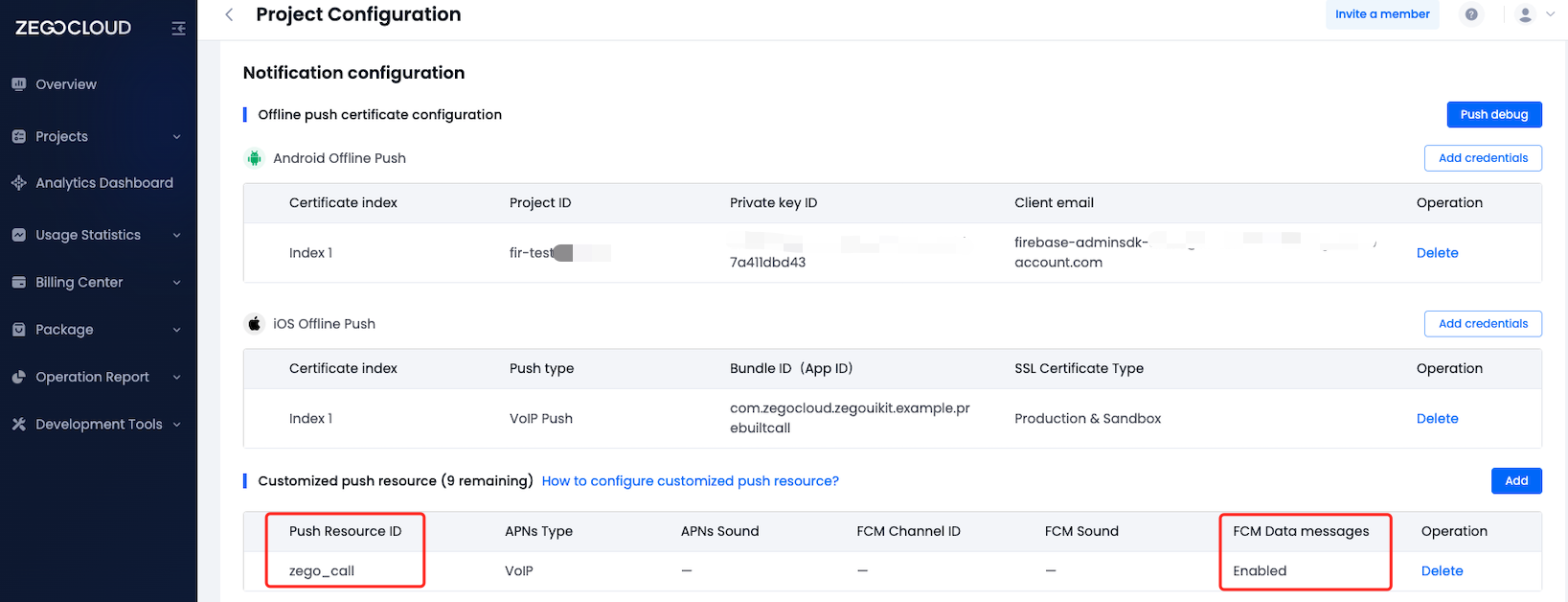)
After the above is completed, the resourceID property value of ZegoSendCallInvitationButton needs to be replaced with the resource ID you get.
python3 zego_check_android_offline_notification.py✅ The google-service.json is in the right location.
✅ The package name matches google-service.json.
✅ The project level gradle file is ready.
✅ The plugin config in the app-level gradle file is correct.
✅ Firebase dependencies config in the app-level gradle file is correct.Considering the complicated steps of configuring the offline call invitation, we recommend you download the Sample code for debugging during your integration.
If your project has already integrated Firebase Cloud Messaging, you will need additional steps to complete the integration. Please refer to the FAQ for compatibility issues with Firebase.
Now you have finished all the steps!
You can simply click the Run on Android Studio to run and test your App on your device.